Learn Revit Architecture in the order its tools are used throughout a building-design project.
Start with the interface and design-development commands before moving on to tools for construction documentation.
Build the skills needed to create complete 3D architectural project models and organise them into working drawings. Guided exercises make Revit’s complex environment easier to approach.
This training course focuses on basic tools that the majority of users need to work with Revit Architecture.
At the end of the course, you will be able to:
- Understand the AutoCAD workspace and user interface.
- Using basic drawing, editing and viewing tools.
- Organizing drawing objects on layers.
- Inserting reusable symbols (blocks).
- Preparing a layout to be plotted.
- Adding text, hatching and dimensions
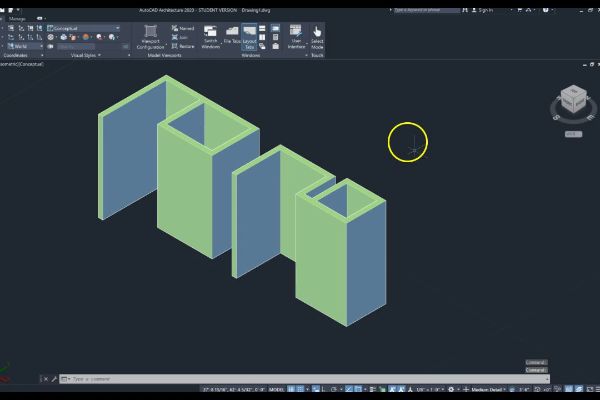
BENEFITS OF AutoCAD Essentials TRAINING

Comprehensive Understanding

Increased Productivity

Design Accuracy

2D and 3D Modeling
View Course Content
DAY 1
CHAPTER 1: INTRODUCTION TO BIM AND AUTODESK REVIT
- Building Information Modeling
- Overview of the Interface
- Standard Terminology
- Starting Projects
- Viewing Commands
CHAPTER 2: BASIC DRAWING AND MODIFY TOOLS
- Using General Drawing Tools
- Editing Elements
- Working with Basic Modify Tools
- Working with Additional Modify Tools
CHAPTER 3: SETTING UP LEVELS AND GRIDS
- Setting Up Levels
- Creating Structural Grids
CHAPTER 4: MODELING WALLS
- Modeling Walls
- Modifying Walls
- Edit Walls Profile
- Adding Wall Sweep with profile
- Adding Wall Reveal with profile
CHAPTER 5: WORKING WITH CURTAIN WALLS
- Creating Curtain Walls
- Adding Curtain Grids
- Working with Curtain Wall Panels
- Attaching Mullions to Curtain Grids
CHAPTER 6: WORKING WITH VIEWS
- Duplicating Views
- Adding Callout Views
- Setting the View Display
- Elevations and Sections
- Adding 3D Perspective view
- Adding 3D Section Box
DAY 2
CHAPTER 7: MODELING FLOORS
- Modeling Floors
- Adding Floor Materials
- Creating Shaft Openings
- Creating Vertical Openings
- Creating Sloped Floors
CHAPTER 8: MODELING CEILINGS
- Modeling Ceilings
- Adding Ceiling Fixtures
- Creating Ceiling Soffits
CHAPTER 9: WORKING WITH DOORS AND WINDOWS
- Inserting Doors and Windows
- Loading Door and Window Types from the Library
- Creating Additional Door and Window Sizes
CHAPTER 10: ADDING COMPONENTS
- Adding Components
- Modifying Components
- Adding Lighting Fixture
CHAPTER 11: MODELING ROOFS
- Modeling Roofs
- Creating Roofs by Footprint
- Reference Planes and Work Planes
- Creating Roofs by Extrusion
- Cleaning Up Wall and Roof Intersections
CHAPTER 12: VERTICAL CIRCULATION
- Creating Component Stairs
- Modifying Component Stairs
- Working with Railings
- Sketching Custom Stairs
- Creating Ramps
DAY 3
CHAPTER 13: ANNOTATING CONSTRUCTION DOCUMENT
- Working with Dimensions
- Working With Text
- Adding Detail Lines and Symbols
- Creating Legends
CHAPTER 14: ADDING TAGS AND SCHEDULES
- Adding Tags
- Adding Rooms and Tags
- Working with Schedules
CHAPTER 15: CREATING DETAILS
- Setting Up Detail Views
- Adding Detail Components
- Annotating Details
CHAPTER 16: CREATING CONSTRUCTION DOCUMENTS
- SettingUp Sheets
- Placing and Modifying Views on Sheets
- Printing Sheets
LET’S TALK TRAINING
A good place to start.
Tell us what you would like to learn or how you would like to collaborate. Our team will help with the next step.
YOUR NEXT CHAPTER
Let’s talk trainingReady for your next step?
Let’s find the right training for you or your team.